Design & MediaAlternatives
Kapwing Lifetime Deal Alternatives for Small Businesses
Five AppSumo lifetime deals that cover parts of what Kapwing does, from clip cutting to captions and dubbing. Each has caps worth knowing before you pay.
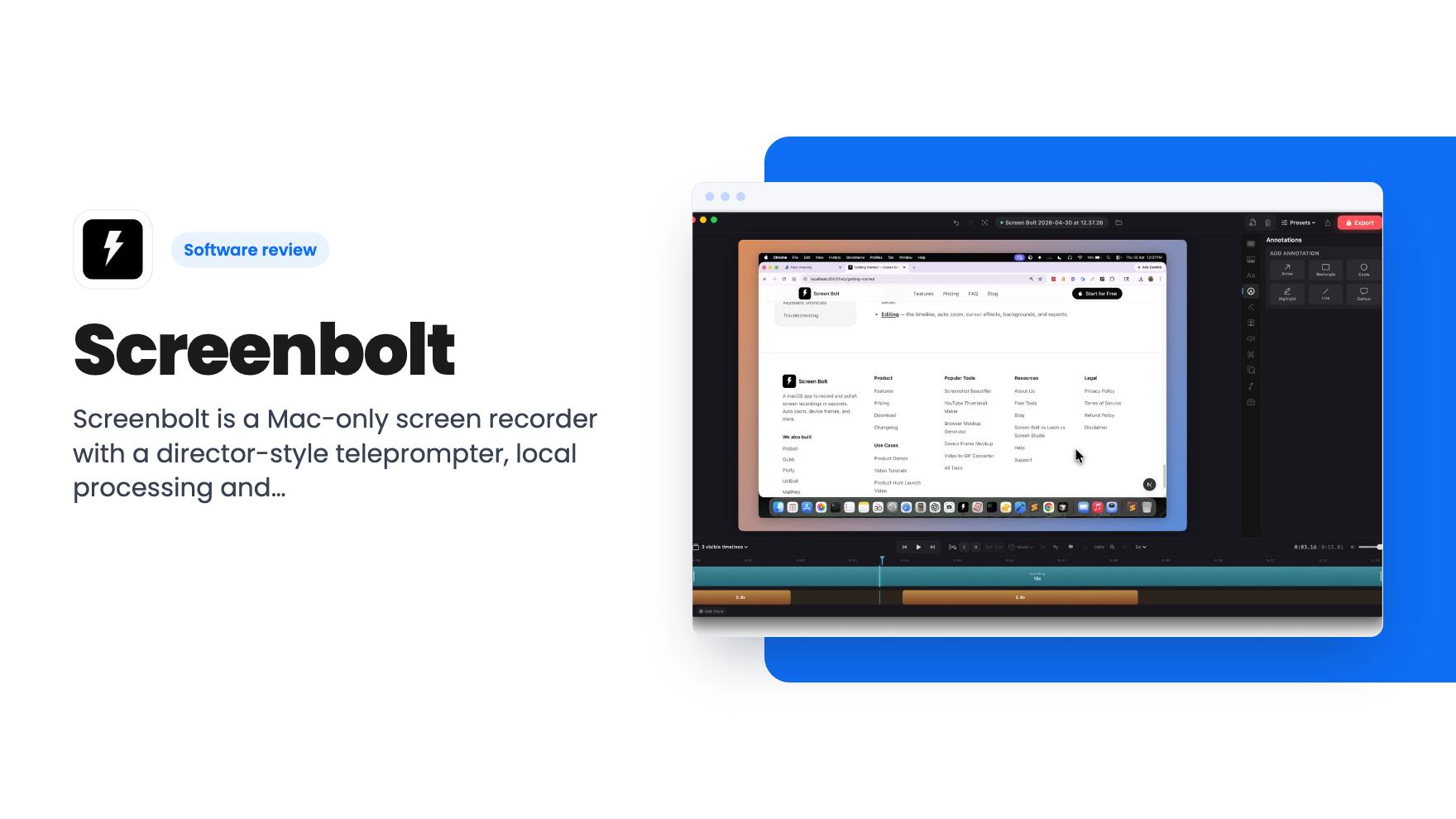
Screenbolt is a Mac-only screen recorder with a director-style teleprompter, local processing and a $19 AppSumo lifetime deal. Here's what the listing leaves out.
Lifetime deal price
$19$7976% off
Lifetime Deal
Our take: Worth the $19 if you're a Mac-based creator, educator or freelancer who reads scripts on camera and wants recordings kept on your own machine. Skip it if you need Windows, hosted share links or team features, or if you want proof of export and editing options before you pay.
Picture a client who needs a walkthrough of the site you just built, or a student who keeps asking the same question about a spreadsheet. Typing it all out takes longer than showing it. So you open a screen recorder, hit record, and spend the next ten minutes saying “um” while scrolling around looking for the right window.
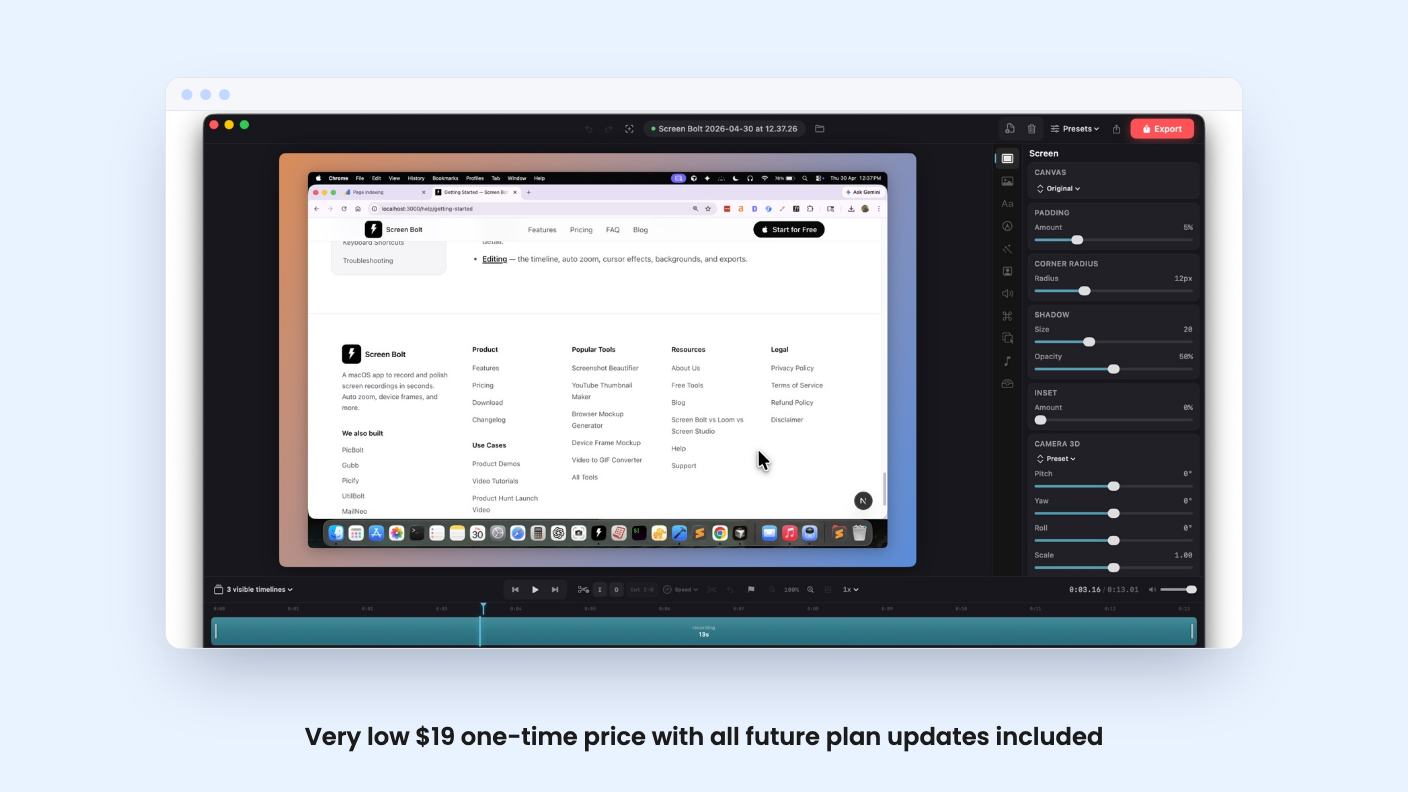
Screenbolt is a Mac screen recorder that tries to fix the second half of that problem as well as the first. It’s listed on AppSumo as a lifetime deal at $19, down from a $79 list price, and it’s pitched at content creators, educators and freelancers. AppSumo files it as an alternative to Loom, OBS and Screencastify.
Most of the listing is thin, but one feature gets proper attention: the teleprompter. The listing describes it as one that “thinks like a director,” and lists three things under it: director cues, speed control and auto-pace.
Speed control is the obvious one. You set how fast the script scrolls so it matches your reading pace. Auto-pace sounds like it adjusts that for you, though the listing doesn’t explain how. Does it follow your voice, or does it just smooth the scroll? We don’t know.
Director cues are the vaguest of the three. My guess is they’re markers in your script that tell you when to pause, switch windows or change tone. That’s a guess. The listing doesn’t say, and there’s no product video to settle it.
Still, a built-in teleprompter matters if you record tutorials or course lessons from a script. Reading from a separate window means your eyes drift away from the camera or the screen. Having the script inside the recorder is a practical convenience, and it’s the one thing here that sets Screenbolt apart from a plain capture tool.
The other named feature is custom backgrounds. You get solid colors, custom images and mesh gradients. That’s useful if you record yourself on camera and want something cleaner than your spare room, or if you want a branded look for a course.
The listing doesn’t say whether a webcam bubble, a face-cam layout or any other layout is included. It also doesn’t say whether the backgrounds apply to the screen capture frame, the webcam, or both. Check that before you assume it does what you picture.
Audio is better documented. The FAQ says Screenbolt captures system audio, microphone input, or both at once. Anyone who’s tried to record sound from inside an app on a Mac knows that’s often the annoying part. If you demo software with sound, or react to a video, it’s good to see it stated outright.
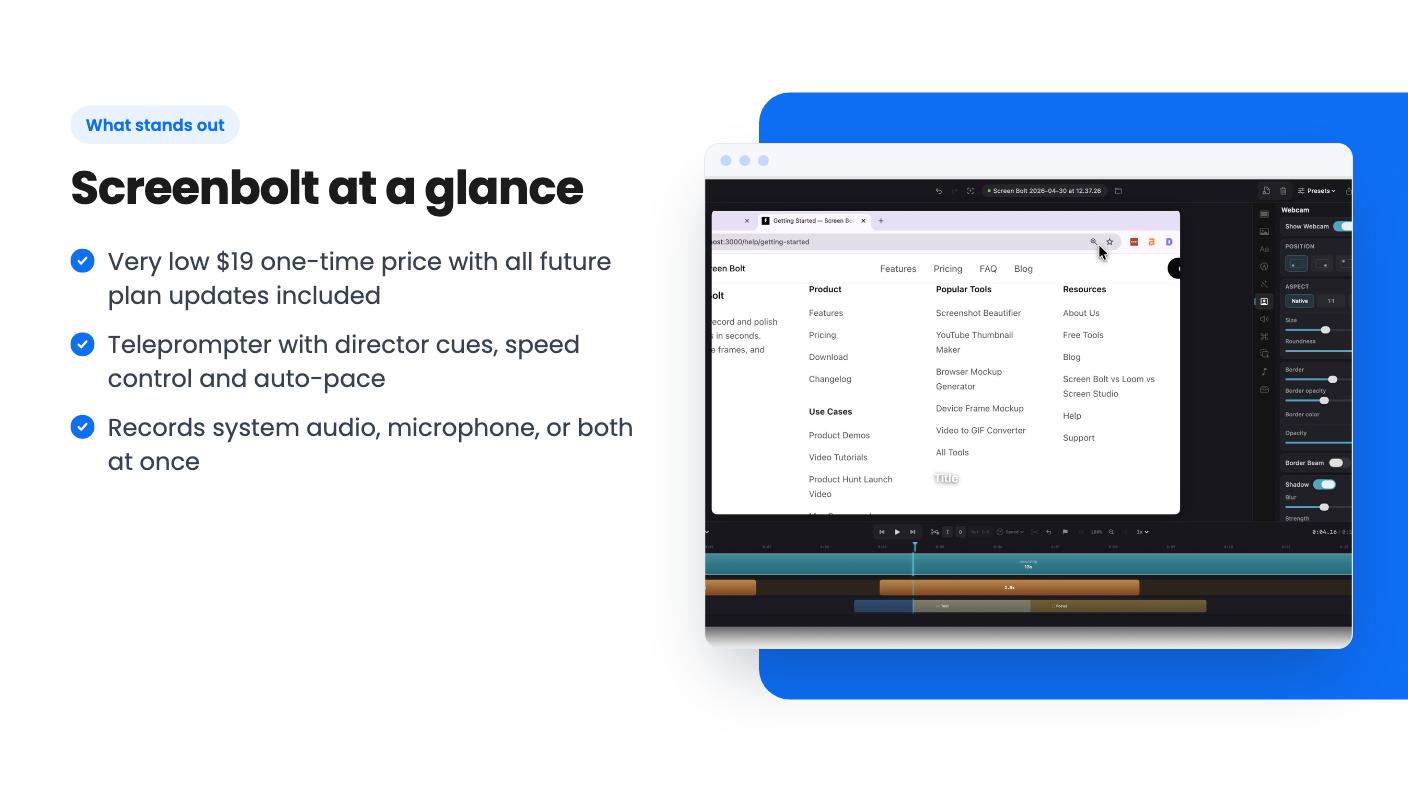
The FAQ is clear on privacy. Everything is processed locally on your Mac, and Screenbolt never uploads your recordings or personal data.
For some people that’s a real benefit. If you record client dashboards, internal tools or anything under an NDA, a recorder that doesn’t send files to a server removes a worry. You also don’t depend on someone else’s storage limits or on the company staying in business to keep your videos online.
There’s a trade-off, though. Loom’s appeal is that you record, get a link and paste it into an email. The listing doesn’t mention hosted links, comments, viewer analytics or team libraries. Given the no-upload promise, we’d expect to export a file and send it ourselves. That’s fine for a lot of work. It’s a downgrade if link sharing is how you use this kind of tool.
There’s one tier. For $19 you get lifetime access to Screenbolt and all future plan updates. You must redeem your code within 60 days of purchase, and the deal is not stackable, so buying extra codes won’t raise any limits. The listing doesn’t mention any limits, which is a good sign.
What the listing doesn’t say is where this gets uncomfortable. There’s nothing on maximum recording length, export formats, resolution or frame rate. There’s no mention of trimming or editing, captions, or cursor effects like zoom and highlight. Those are the things people actually compare when choosing a recorder.
The company’s own FAQ is short and the listing text is empty. There’s no demo video either. AppSumo shows 3 reviews averaging 5.00 out of 5, which is nice but too small a sample to prove much. Treat it as an early signal.
The young-product risk is real too. “All future plan updates” is only as good as the developer’s staying power. At $19 the downside is small, but don’t build your business on it until it has a track record.
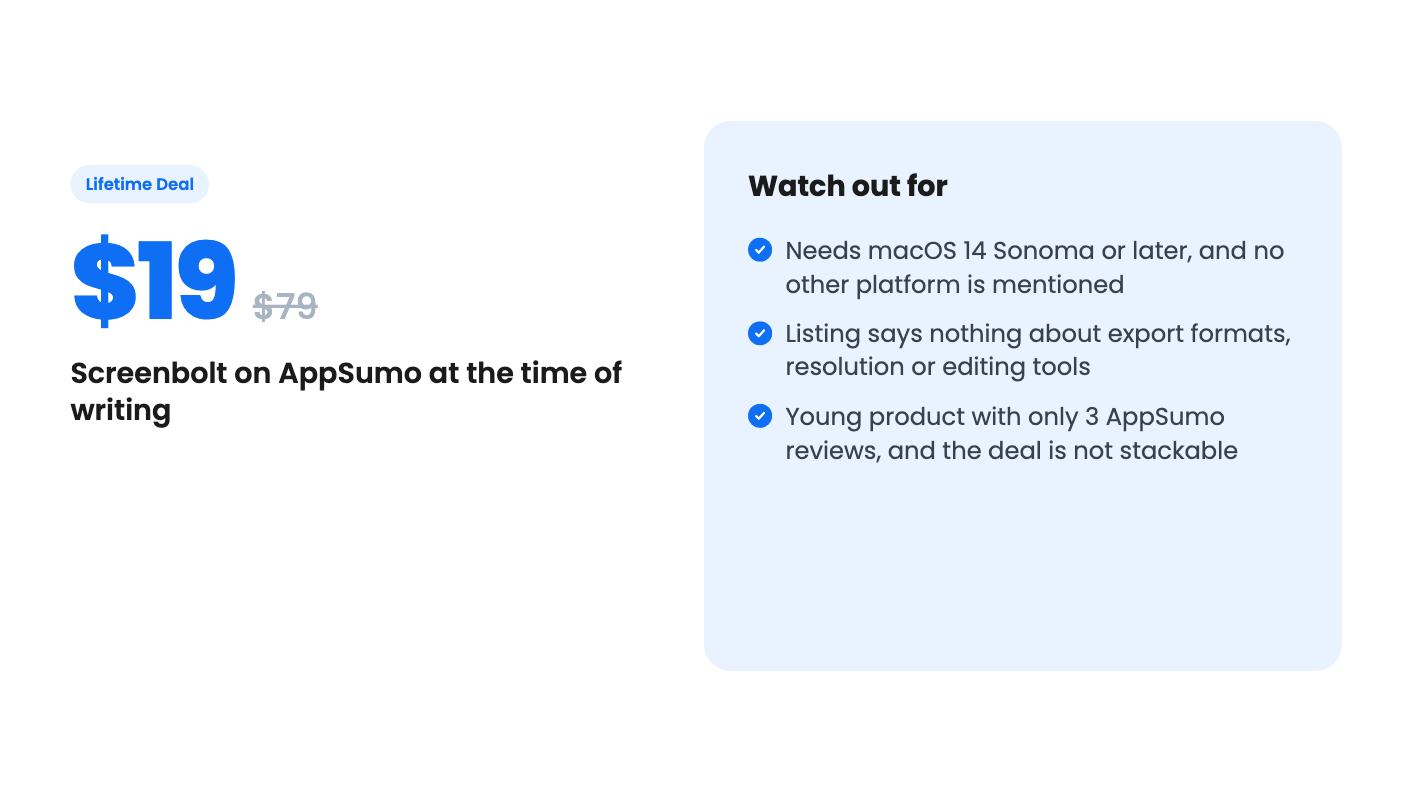
One more requirement: macOS 14.0 (Sonoma) or later. It runs natively on Apple Silicon and Intel, so older hardware is covered, but only if it can run Sonoma.
If you’re on Windows, skip it. The listing only talks about Macs.
Skip it if you need a hosted link, team sharing or viewer stats. Those aren’t mentioned, and the local-only design suggests they aren’t there.
Skip it, or at least wait for more reviews, if you need a full editor with captions, cursor effects or multi-track timelines. The listing names none of them. If you want a free route instead, OBS is on AppSumo’s own alternatives list, and it’s a very capable recorder, though it takes more setup and has no teleprompter.
If you’re a Mac-based freelancer or teacher who records scripted walkthroughs and likes keeping files on your own drive, $19 is a cheap bet. Before you buy, look at the Screenbolt site for sample exports and a feature list, and keep the 60-day redemption window in mind so you actually test it.
The listing only mentions Mac. It says Screenbolt requires macOS 14.0 (Sonoma) or later and runs natively on Apple Silicon and Intel Macs. It doesn't mention Windows or Linux, so assume it's Mac-only.
Yes, according to the listing. It captures system audio, microphone input, or both at the same time. That covers tutorials where you talk over a video or app sound.
The listing says no. Everything is processed locally on your Mac, and Screenbolt never uploads your recordings or personal data. The flip side is that the listing doesn't mention any hosted sharing links.
How this review was made: researched from Screenbolt's official listing, and written with help from AI. We have not tested Screenbolt hands-on yet. Prices and deal terms change, so check AppSumo before you buy. See our affiliate disclosure.
Five AppSumo lifetime deals that cover parts of what Kapwing does, from clip cutting to captions and dubbing. Each has caps worth knowing before you pay.
Seven AppSumo lifetime deals named as Loom alternatives, grouped by job: narrated tutorials, plain recording, interactive demos and personalized outreach video.
Eight AppSumo lifetime deals named as Descript alternatives, grouped by the job you need done, with the caps and gaps each listing shows.