Design & MediaAlternatives
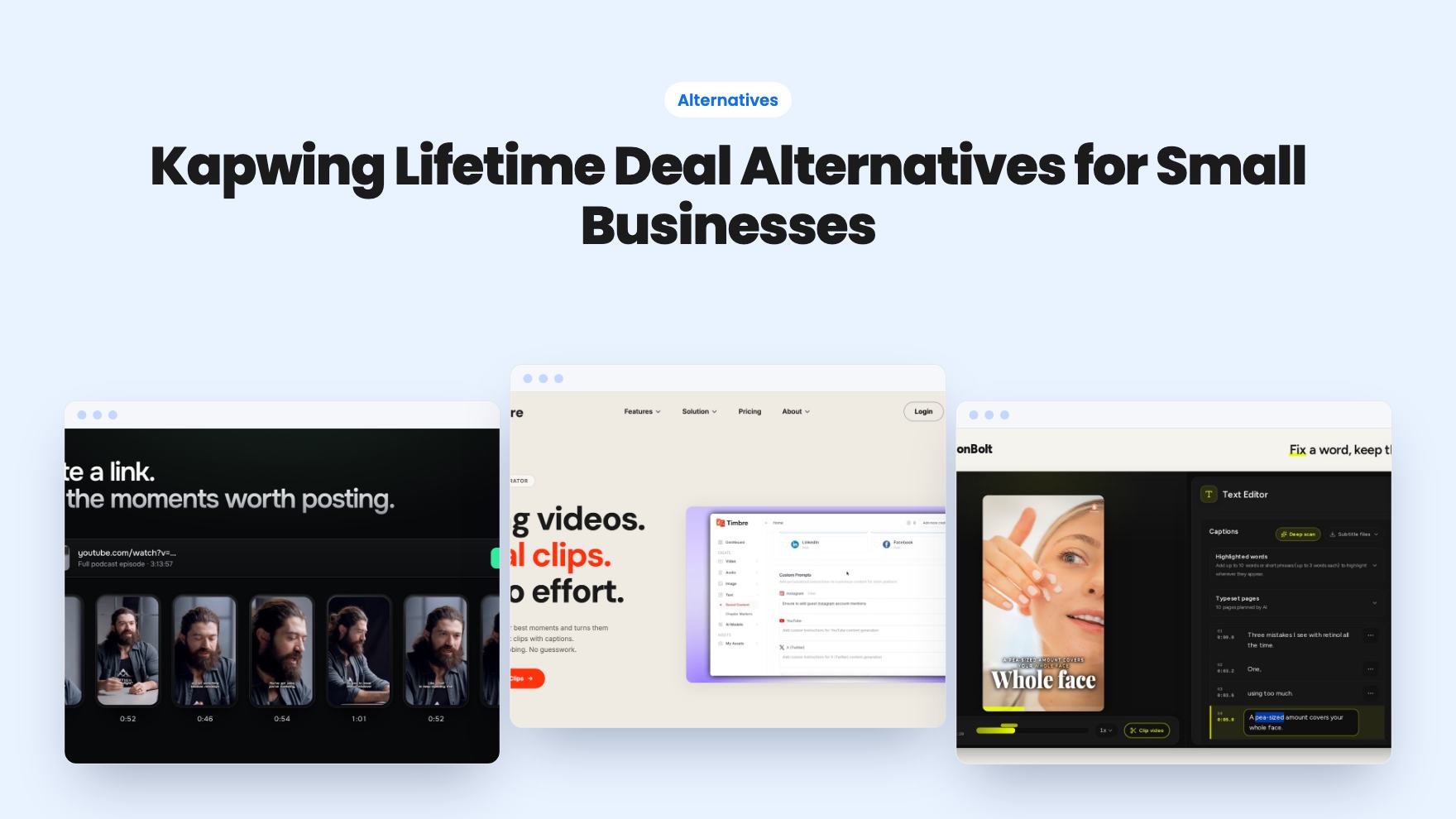
Kapwing Lifetime Deal Alternatives for Small Businesses
Five AppSumo lifetime deals that cover parts of what Kapwing does, from clip cutting to captions and dubbing. Each has caps worth knowing before you pay.
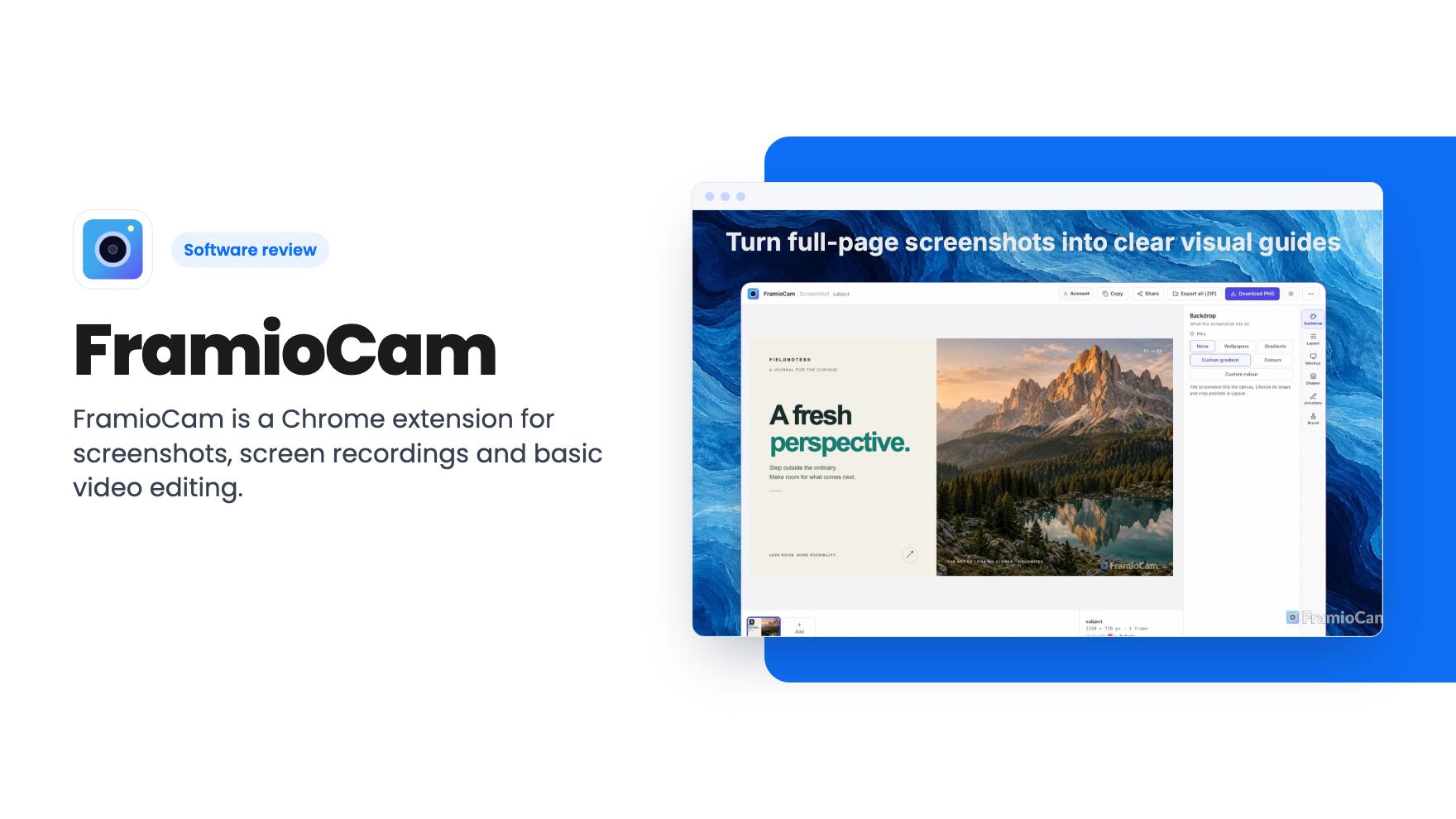
FramioCam is a Chrome extension for screenshots, screen recordings and basic video editing. We look at the three AppSumo lifetime tiers, the device caps and the gaps.
Lifetime deal price
$19$4961% off
Lifetime Deal
Our take: Worth a look at $19 if you make help articles, bug reports or short product demos and you work in Chrome. Skip it if you need a desktop editor, Safari or Firefox support, or hosted video sharing with viewer analytics.
You’ve got a help article to update, a bug to report, and a client who wants to see how the new feature works. That usually means one app for screenshots, another for screen recording, and a third to cut out the thirty seconds you spent hunting for the right tab. FramioCam is a Chrome extension that tries to cover all three jobs, and AppSumo is selling it as a lifetime deal from $19.
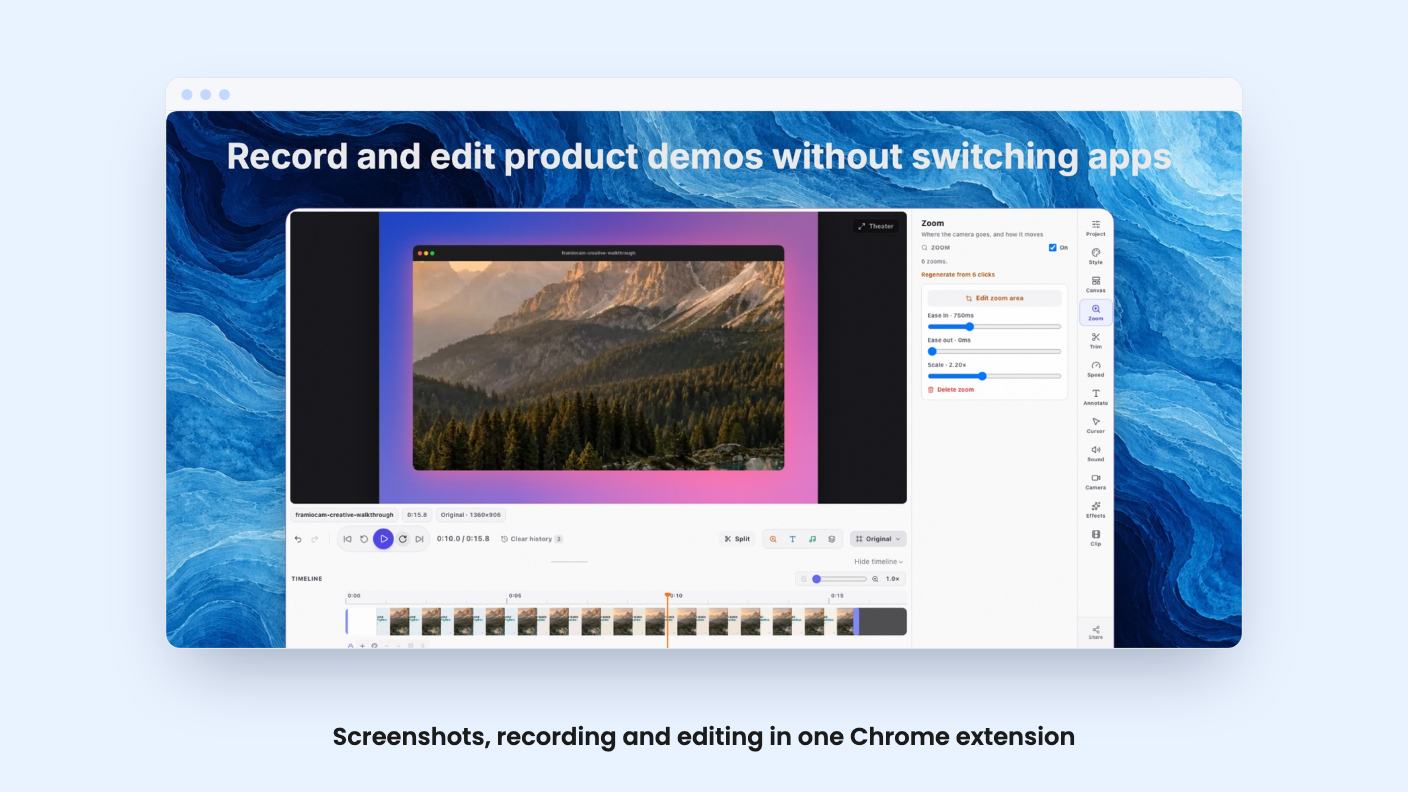
We haven’t used it hands-on, and there’s no demo video attached to the listing. Everything below comes from the listing text, so read it as a buyer’s briefing and not a field report.
The pitch is simple. You capture something, polish it, and export it without leaving the browser.
On the screenshot side, you can grab the visible area, a full page, or a selected region. Then you dress it up in what the listing calls Studio: backdrops, window mockups, cropping and annotations. The intended uses are help articles, bug reports, product updates and presentations. That’s an ordinary, useful list, and it matches the way most small teams actually use screenshots.
On the video side, you can record a tab, a window, the whole screen or a selected area, with microphone and webcam. After that, a multi-lane timeline lets you trim, split and add transitions. The listing lists Camtasia, Loom and Snagit as alternatives. That’s a big claim for a $19 tool, so treat it as marketing until you’ve tried it.
The feature I’d pay attention to is click-driven zoom. Anyone who has watched a screen recording where the important button is a tiny grey rectangle knows why. The listing says FramioCam can zoom in on clicks, add cursor effects and place timed annotations. If that works well, it saves you the manual keyframing that makes demo editing so tedious.
The second useful idea is changing the canvas after you record. You can switch one recording between widescreen, square and vertical layouts, with fit and fill controls, padding, corner radius, backdrop, window frame and shadow. In practice, that means one walkthrough could become a YouTube cut, a LinkedIn square and a vertical clip, without recording three times.
The listing doesn’t say how much control you get over reframing each format. A vertical crop of a wide desktop recording can look cramped, and we can’t tell from the listing whether you can reposition the footage over time. Check that before you plan a whole content calendar around it.
Output options are MP4, WebM, GIF, or a single PNG frame. The listing adds that what you get is “subject to your plan, browser, and device.” That phrase worries me a little. It suggests resolution or format limits that differ by tier, but the listing never says what they are. If you need 1080p MP4s, ask before you buy, or test the free version first.
The storage model is the most unusual part. According to the FAQ, captures, recordings and edits stay in your browser’s own storage on your machine. Nothing goes to FramioCam’s servers. If you connect Google Drive, uploads go straight from your browser to your own Drive, and the listing says that includes share links and editable project sync.
That’s good for privacy, and it means the company isn’t hosting your videos. It also means a real risk. The FAQ says clearing browser data or removing the extension can delete local copies. So if you treat FramioCam as a filing cabinet, you’ll eventually lose something. Download finished files, or turn on Drive sync, and don’t rely on browser storage alone.
Google Drive is also the only integration listed. If your team lives in Slack, Notion or a help-desk tool, you’ll be downloading files and uploading them yourself.
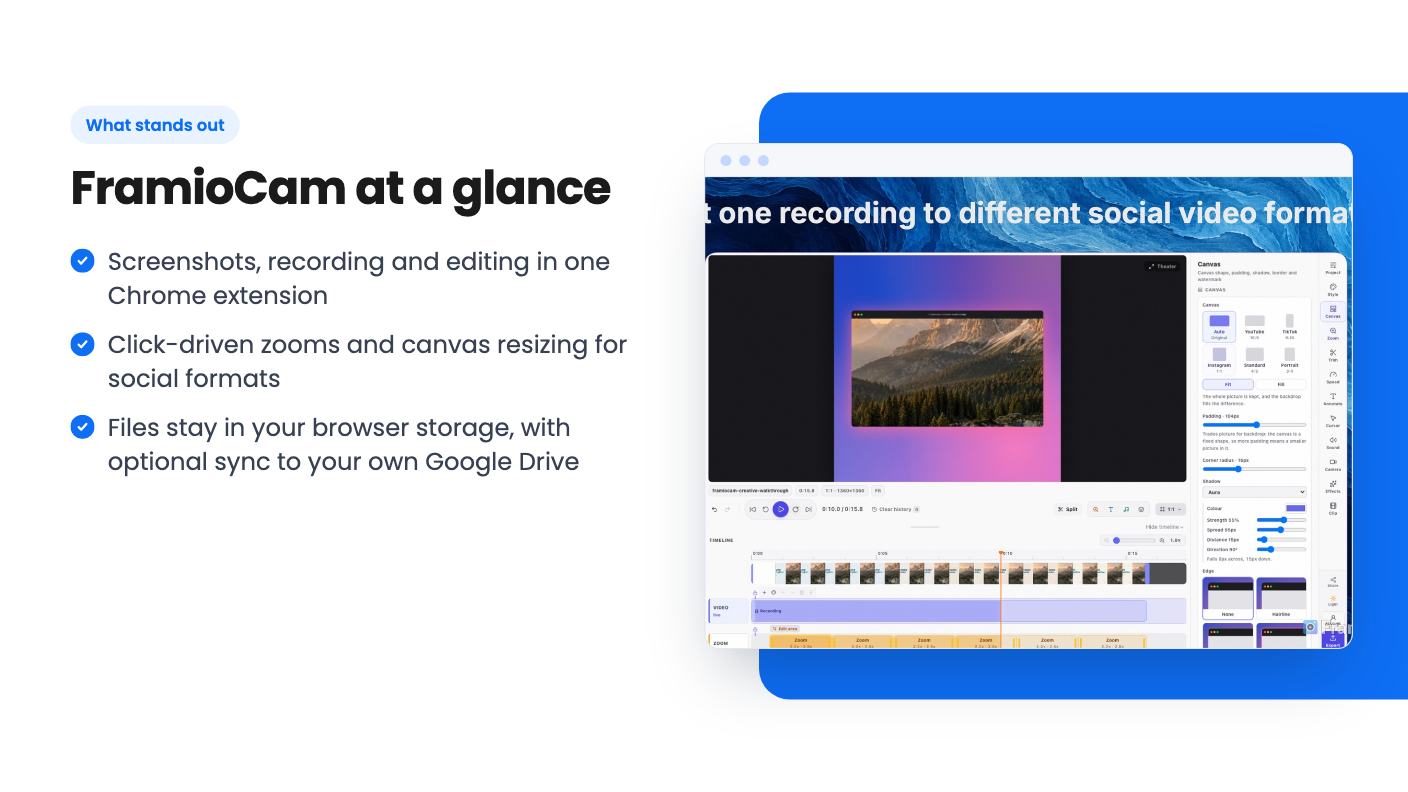
All three tiers are lifetime deals with unlimited cloud sync and unlimited project sync. The differences are in seats and browsers.
The cap that matters is browsers, not people. A device here is a browser, and the seat is tied to the browser’s name. If you use Chrome on a laptop and a desktop, that’s two seats already. Add a Chrome profile for work and one for personal use and tier 1 fills up fast. The FAQ says you can release a browser from your account page to free a seat, so it’s manageable, but it’s a chore.
The FAQ also mentions Team and Business plans, where devices are shared across everyone on the plan. The listing doesn’t name the three lifetime tiers, so we’re guessing the upper two map to those. Confirm that with the seller if team sharing is why you’re buying.
Other terms: you must activate your license within 60 days of purchase, you can move between tiers, and there’s no code stacking. The listing promises “all future plan updates,” which is a reasonable lifetime promise, though it doesn’t describe what future plans might look like.
There’s a free way to test it too. The first 50 screenshots work without an account, and so do recording and editing. Exporting video asks for a free account, which also lifts the screenshot limit. Use that before spending anything.
Skip it if you don’t live in Chrome. The extension works in Chrome on macOS, Windows, Linux and ChromeOS, and the listing mentions nothing else. There’s no desktop app and no Safari or Firefox version.
Skip it if you want Loom-style hosted sharing with view counts and comments. FramioCam sends files to your own Drive instead, which is a different workflow. Skip it too if you need heavy video editing such as multi-camera work or detailed audio mixing. A browser timeline with trims, splits and transitions is fine for demos, but the listing doesn’t claim more.
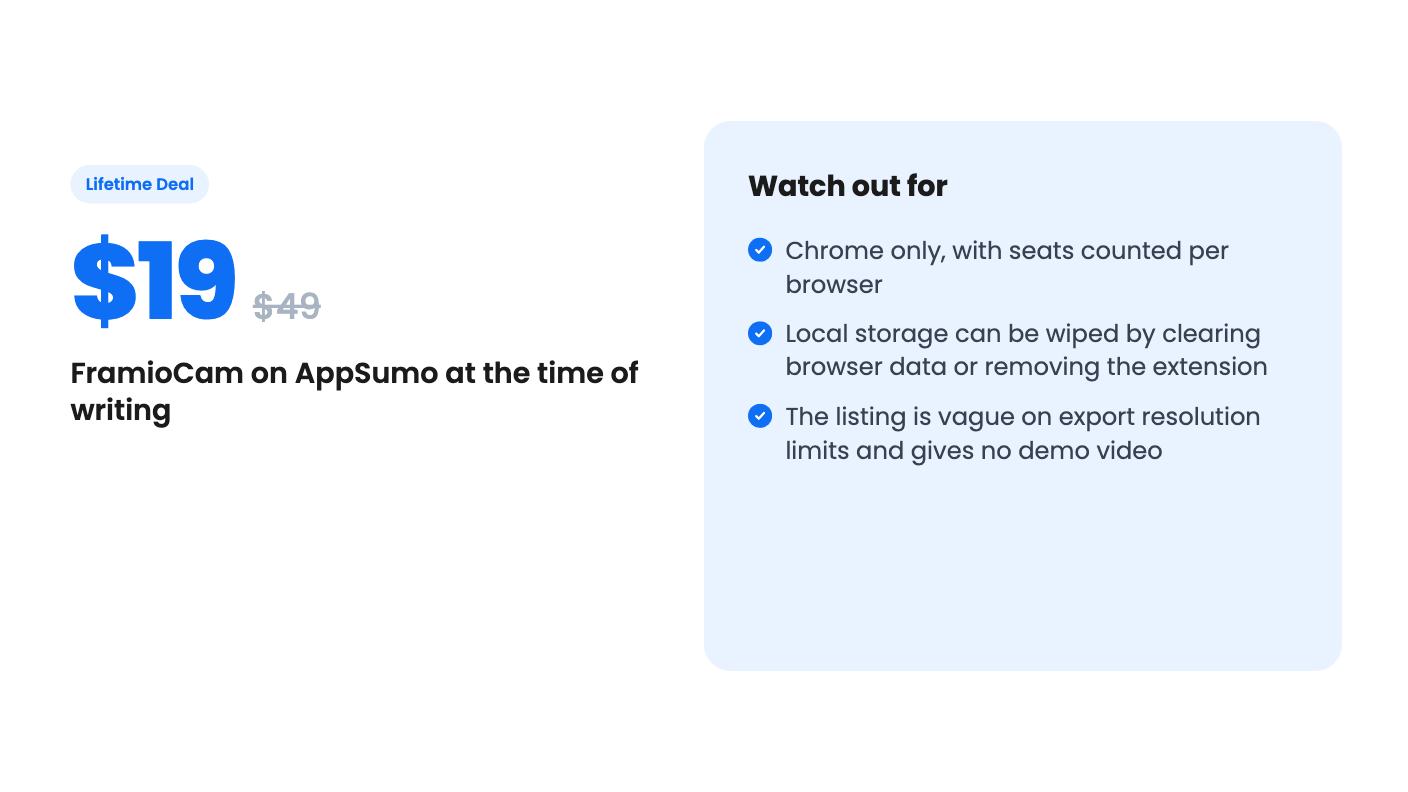
It’s also a young product, and the listing has no review history, no sample output and no demo video. That’s a reason to start at tier 1. At $19, with a tier-switch option, the downside is small, and for a solo creator who makes help articles and short walkthroughs, it’s a cheap way to find out if one tool can replace two or three.
A browser. The extension names the browser it's installed in, and that name holds the seat. Tier 1 allows 2 browsers, tier 2 allows 6 and tier 3 allows 30. You can release a browser from your account page to free the seat.
By default they stay in your browser's local storage on your own machine. You can optionally send them to your own Google Drive. Clearing browser data or removing the extension can delete local copies, so download anything you want to keep.
According to the listing, yes. The first 50 screenshots work with no account, and recording and editing work too. Exporting a video needs a free account, which also removes the 50-screenshot limit.
How this review was made: researched from FramioCam's official listing, and written with help from AI. We have not tested FramioCam hands-on yet. Prices and deal terms change, so check AppSumo before you buy. See our affiliate disclosure.
Five AppSumo lifetime deals that cover parts of what Kapwing does, from clip cutting to captions and dubbing. Each has caps worth knowing before you pay.
Seven AppSumo lifetime deals named as Loom alternatives, grouped by job: narrated tutorials, plain recording, interactive demos and personalized outreach video.
Eight AppSumo lifetime deals named as Descript alternatives, grouped by the job you need done, with the caps and gaps each listing shows.